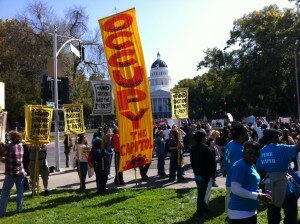
Video streams: Sacramento, CA Albany, NY
Final arrest count is 76 Occupiers arrested and released by the police at the Occupy the Capitol action in Sacramento.
8:32pm PST Protestors request that supporters call the CHP Academy (3500 Reed Ave West, Sacramento, CA 95605, 916-322-3337) in support of those arrested at Occupy the Capitol since the police are apparently processing arrestees there and then probably moving them to the Sacramento County Jail.
8:12pm PST Police complete arrests of all 50+ Occupiers in the hallway off the Rotunda of the Capitol building in Sacramento. The last Occupiers chant “No cuts, no fees, education must be free” and “When education is under attack, what do we do? Stand up fight back!” as the police take them into custody.
8:03pm PST Occupiers read their demands as they are arrested in the hallway off the Rotunda of the Capitol building in Sacramento: 1) Pass the Millionaire Tax, 2) Cancel all student debt, 3) Democratize the UC Board of Regents and the CSU Board of Directors and Trustees, 4) Fully fund all education, and 5) Amend Prop 13 to move to a split roll tax, commercial vs residential.
7:51pm PST Police start arresting 50+ Occupiers in hallway off the Rotunda of the Capitol Building in Sacramento. They decided not to link arms to avoid a charge of resisting arrest. They are chanting “Whose education? Our education. Whose schools? Our schools” and “We’re doing this for your kids”.
7:48pm PST Protestors chant “Educate, not incarcerate” in hallway off the Rotunda of the Capitol Building in Sacramento.
7:41pm PST Police entering hallway off the Rotunda of the Capitol building in Sacramento to arrest more than 50 Occupiers engaged in civil disobedience there.
7:34pm PST Large number of riot cops arrive from west side of Capitol into Rotunda with zip ties in hand for arresting Occupiers who are chanting “No cuts, no fees, education must be free”, “the students united can never be divided”, and “si se puede”.
7:27pm PST Occupiers rallying outside are chanting “Politicians lie, we Occupy!”
7:17pm PST Police issue fourth dispersal order to crowd of at least 50 clapping and chanting Occupiers in hallway off the Rotunda of the Capitol building in Sacramento: “Education is a right, not just for the rich and white.”
7:14pm PST At least 50 Occupiers in a hallway off the Rotunda of the Capitol building in Sacramento are high-fiving and hugging after stating their commitment to face arrest in their civil disobedience action. They chanted, “Teachers rock!”
6:33pm PST Seargent Stone of California Highway Patrol issues a dispersal order to the hundreds of Occupiers still in the Capitol building in Sacramento. In response, the Occupiers chant “Education is a right, we are here to Occupy!”, “Whose Capitol? Our Capitol!”, “No cuts, no fees, education must be free”, and
“They got bailed out, we got sold out”.
6:24pm PST Police read order to disperse from Capitol building in Sacramento. They warn those that get arrested that they may be transported, not just cited and released.
6:13pm PST Hundreds of Occupiers outside the Capitol building in Sacramento chanting “We are the 99%” and “Let Them Eat”, trying to bring pizza to protestors inside the building.
6:00pm PST Capitol building in Sacramento, California, normally would be closed at this time. 500+ Occupiers still inside with several hundred rallying outside.
5:58pm PST Occupiers mike checked the riot cops to read out the section of California law that requires police officers to identify themselves or face a misdemeanor charge. Police in Oakland who didn’t wear identification badges received fines and demotions.
5:54pm PST Nonviolent direct action training taking place in Rotunda of the Capitol building in Sacramento, California.
5:41pm PST The General Assembly of the Occupiers at the Capitol building in calls on the State government to heed the following demands: 1) Pass the Millionaire Tax, 2) Cancel all student debt, 3) Democratize the UC Board of Regents and the CSU Board of Directors and Trustees, 4) Fully fund all education, and 5) Amend Prop 13 to move to a split roll tax, commercial vs residential.
5:12pm PST Police deliver dispersal order to Occupiers in the Capitol building in Sacramento, California.
5:06pm PST Hundreds of Occupiers chanting “No hikes, no fees, education must be free” in the Capitol building in Sacramento, California.
4:59pm PST Hundreds of Occupiers chanting “This is what democracy looks like”, “Whose Capitol? Our Capitol!”, and “We got sold out, banks got bailed out” in the Capitol building in Sacramento, California.
4:40pm PST General Assembly debating whether to remain in Capitol once police issue order to disperse from the Capitol building in Sacramento, California.
4:33pm PST Confirmed that at least dozens of riot cops are staged outside the Capitol building in Sacramento, California. They are in bullet-proof jackets with no badge numbers or names visible. Some are on horses.
4:13pm PST Apparently, 200 riot cops are staging outside the Capitol building in Sacramento, California, and occupiers are letting protestors know that they should leave if they don’t want to risk arrest.
4:09pm PST General Assembly facilitators mic checking list of proposed next steps in the Rotunda of the Capitol in Sacramento, California.
4:01pm PST Police apparently arrest a person named Orlando in the Rotunda of the Capitol in Sacramento, California.
3:53pm PST California Lieutenant Governor Gavin Newsom visited and left the Rotunda at the Capitol Building in Sacramento.
6:33pm EST Police citing and releasing the 30 occupiers arrested in the Capitol building in Albany, New York, although those who could not provide identification are apparently being moved for processing elsewhere.
3:17pm PST General Assembly picking top 5 demands in the Rotunda of the Capitol in Sacramento, California. Nonviolent direct action training to follow GA.
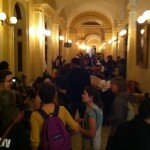
3:08pm PST About 100 people having a General Assembly in the Rotunda of the Capitol in Sacramento, California. Police have blocked Rotunda and are refusing bathroom access with about 500 more occupiers in the Rotunda balconies and the halls outside the Rotunda. Building scheduled to close at 5pm. Rally outside scheduled for 5:30pm.
5:54pm EST Hundreds occupied the building with 30 arrests total at Occupy the Capitol action at the Governor Cuomo’s Office in Albany.
5:44pm EST 24 arrests so far at Occupy the Capitol action at the Governor Cuomo’s Office in Albany, 6 remaining in this civil disobedience action, chanting “Everywhere we go, people want to know, so we tell them: We are the students, the mighty, mighty students, fighting for justice and an education.”
5:39pm EST 22 arrests so far at Occupy the Capitol action at the Governor’s Office in Albany, 8 remaining in this civil disobedience action, chanting “Cuomo beware, the movement is everywhere.”
5:35pm EST 20 arrests so far at Occupy the Capitol action at the Governor’s Office in Albany, chanting “1. We are the students. 2. We are united. 3. The student body is not leaving.”
5:28pm EST 17 arrests so far at Occupy the Capitol action at the Governor’s Office in Albany.
5:21pm EST Now up 13 arrests at the Governor’s Office in the Capitol Building in Albany chanting “The students united will never be defeated”.
5:09pm EST Sit-in at the Governor’s Office in the Capitol Building to protest tuition hikes. Arrest count up to 11 at the Occupy the Capitol action in Albany. Chanting “Resist, stand up” and “Our demands are fair, we’re not going anywhere.”
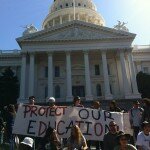
2:08pm Banner drop in Rotunda of Capitol building in Sacramento halted by police.
5:06pm EST Arrest count up to 8 at the Occupy the Capitol action in Albany.

12:15pm PST A line of protestors is waiting to enter the Capitol building in Sacramento. They must pass through metal detectors. They are chanting “Whose state? Our state!”
Videostreams of March 5 Occupy the Capitol protest in Albany:
occupymusician: Albany, NY
occugle: Albany, NY
Videostreams of March 5 Occupy the Capitol protest in Sacramento:
punkboysf in Sacramento, California (in Capitol building)
pixplz in Sacramento, California (in Capitol building)
sacmedia in Sacramento, California (outside Capitol building)
pfailblog in Sacramento, California (outside Capitol building)
Check out the latest info on the March 5 in Sacramento, including bus departures. Occupy the Capitol!